
Signing In With a Password
By default, Scope sends a verification code to your email when you sign in on a new device. If you're not receiving these codes or prefer a faster sign-in experience, you can add a password to your account.
Adding a Password to Your Account
You can add a password from any device where you're already signed in:
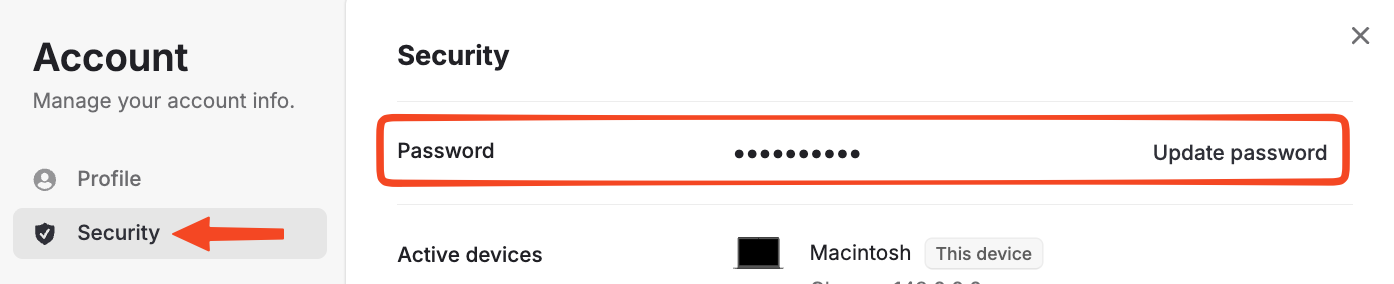
- Tap your profile icon - on desktop it's in the bottom left of the sidebar, on mobile it's in the top right of the home screen
- Select Manage account
- Navigate to Security - on desktop click Security in the left sidebar, on mobile tap the three lines next to "Account" at the top and select Security
- Tap Set password (or "Update password" if one exists)
- Enter your new password and confirm it
- Tap Save
Signing In With Your Password
Once you've added a password, here's how to use it when signing in:
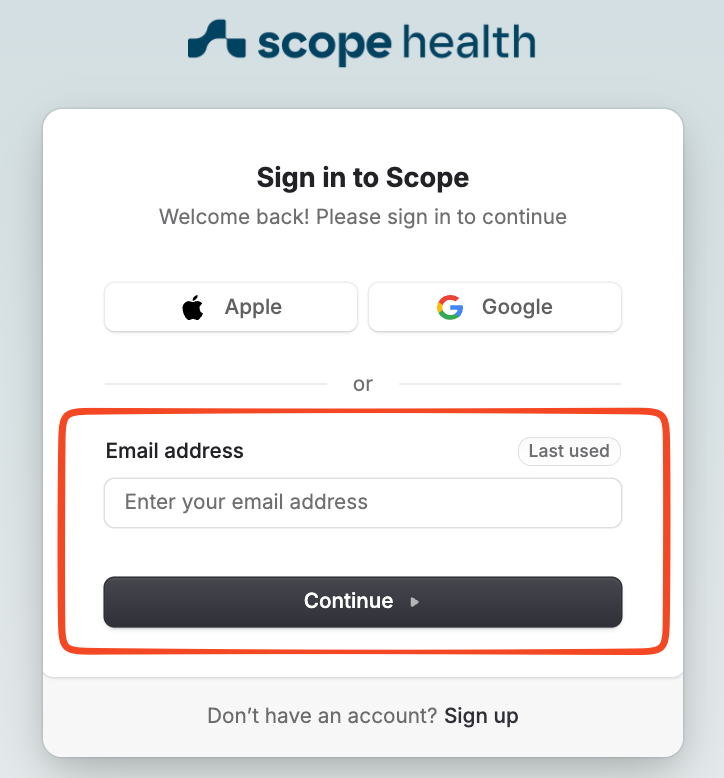
- Go to the Scope sign-in page: app.scopehealth.com/sign-in
- Enter your email address
- Click Continue
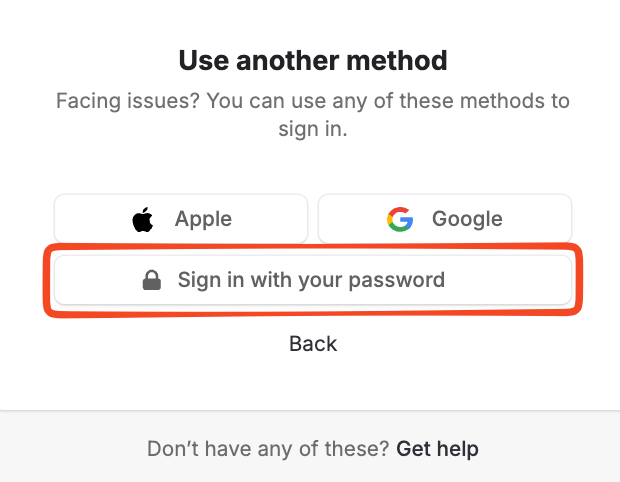
- You'll see the verification code prompt - look at the bottom of the screen
- Click Use another method
- Select Sign in with your password
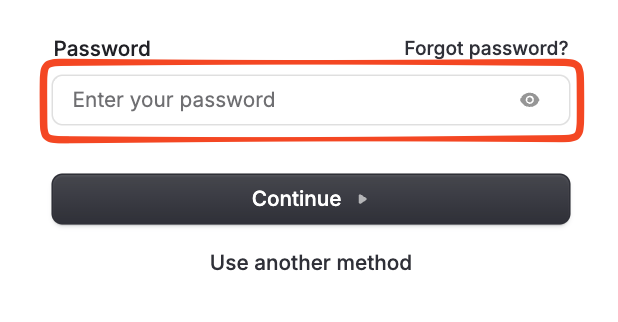
- Enter your password
- You're in!
Here's what the sign-in flow looks like:

Why Add a Password?
- Email delivery issues: Some email providers delay or filter verification codes
- Faster sign-in: Skip waiting for the verification email
- Multiple devices: Easily sign in on desktop after setting up on mobile (or vice versa)
Still Having Trouble?
If you can't access your account at all, contact support@scopehealth.com and we'll help you get back in.