How to Print Visit Notes from Scope
You can print visit notes from Scope by first exporting the note as a PDF, then printing that PDF from your device.
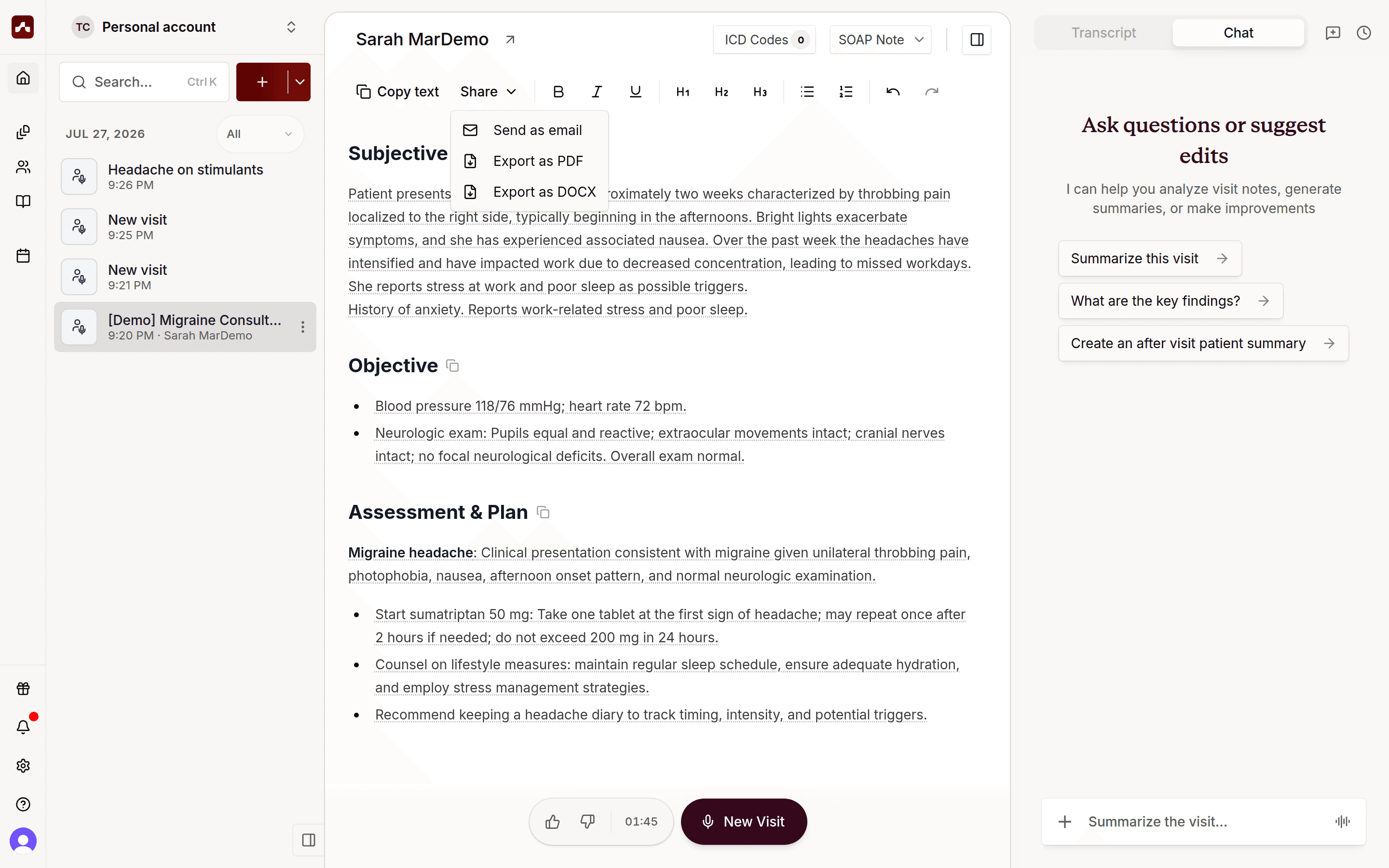
Desktop: Export your note as a PDF
- Open a completed visit note.
- Click Share in the note toolbar.
- Select Export as PDF.
- Open the downloaded PDF file.
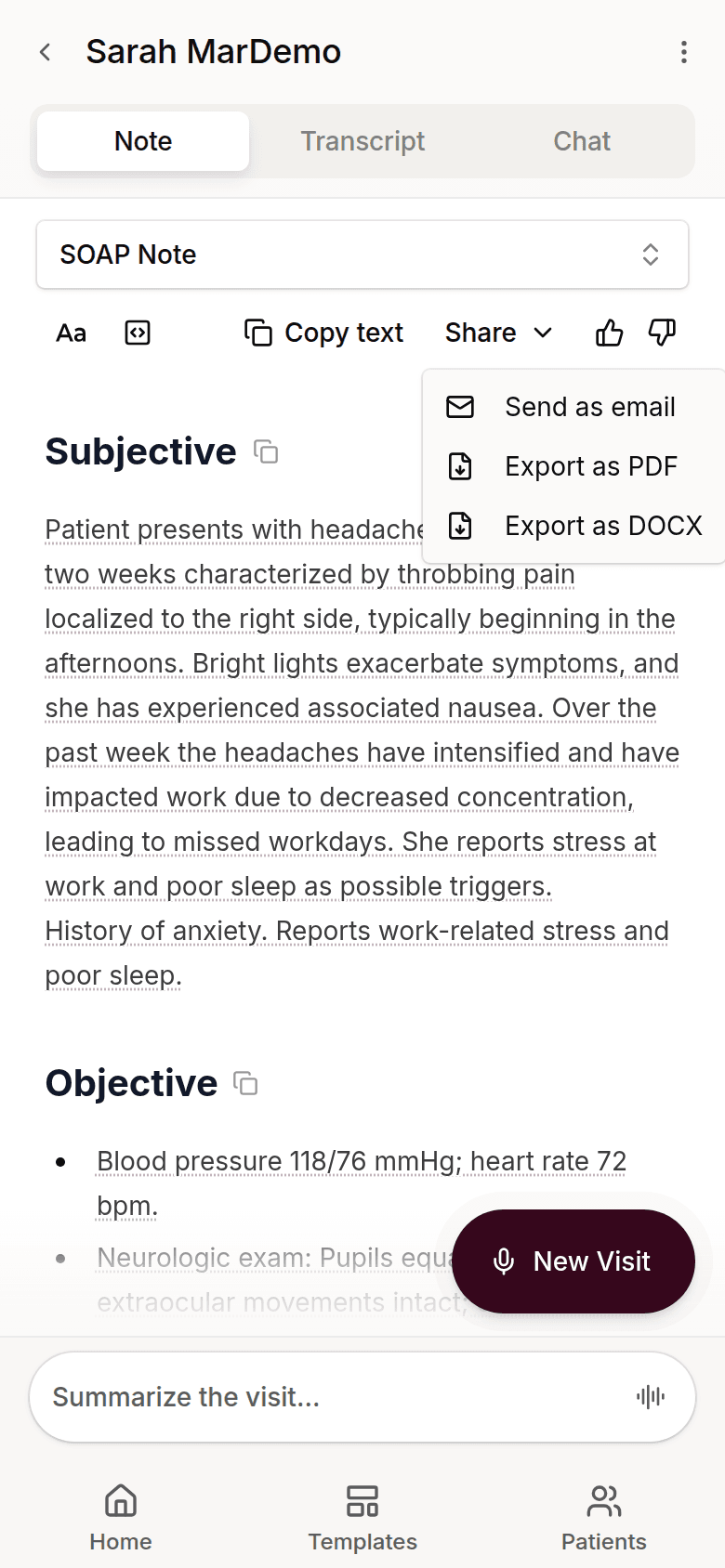
Mobile: Export your note as a PDF
- Open a completed visit note.
- Tap Share in the note toolbar.
- Tap Export as PDF.
- Open the downloaded PDF from your Files or Downloads app.
Tip: If you'd rather have an editable copy of the note, select Export as DOCX instead to download a Word document.
Print the PDF
Once the PDF is downloaded, print it using your device's print flow:
- Desktop (Mac/Windows): Open the PDF and press Cmd+P (Mac) or Ctrl+P (Windows), then choose your printer.
- iPhone/iPad: Open the PDF, tap the share icon, then tap Print.
- Android: Open the PDF in your file or PDF viewer app, tap the menu, then tap Print.
If Export as PDF doesn't appear
- Make sure you're viewing a visit note (not just the transcript tab).
- Click or tap Share again to reopen the menu.
- Refresh the page and try exporting again.