Using Slash Commands
Slash commands give you a quick way to reuse text and prompts in Scope. Each command has a short name and saved content.
For example, /avs can insert a prompt that asks Scope to create an after-visit summary. You can review or change the inserted text before you use it.
Create a Slash Command
- Open Settings in Scope.
- Select Slash commands.
- Select Add command.
- Enter a short name in the Command field. Do not include the
/character. - Enter the saved text or prompt in the Expands to field.
- Select Create.
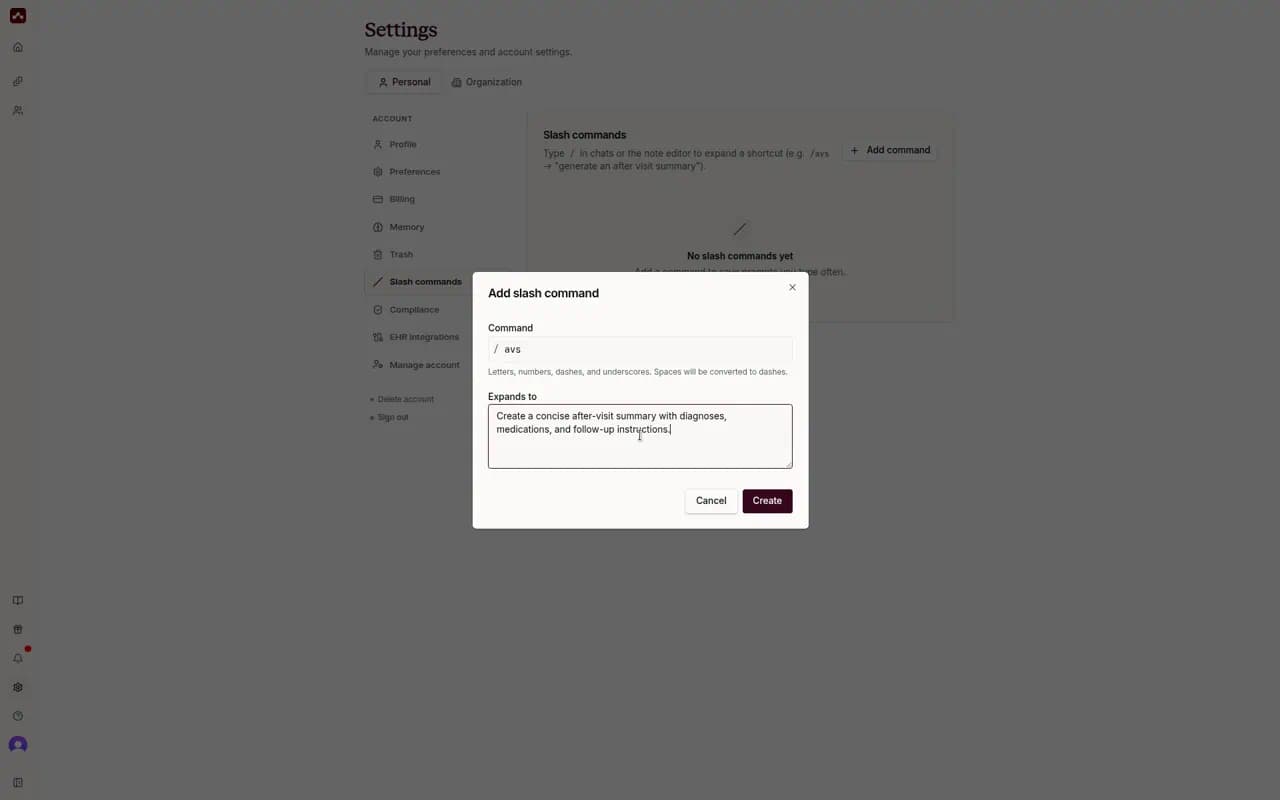 Create a slash command with a short command name and the text it should insert
A command name can contain letters, numbers, spaces, dashes, and underscores. Scope changes spaces to dashes.
Use a Slash Command in Ask Scope
- Put the cursor at the start of an empty Ask Scope message.
- Type
/to open the command menu. - Continue to type the command name to filter the list.
- Select the command that you want to use.
- Review or change the inserted text.
- Send the message.
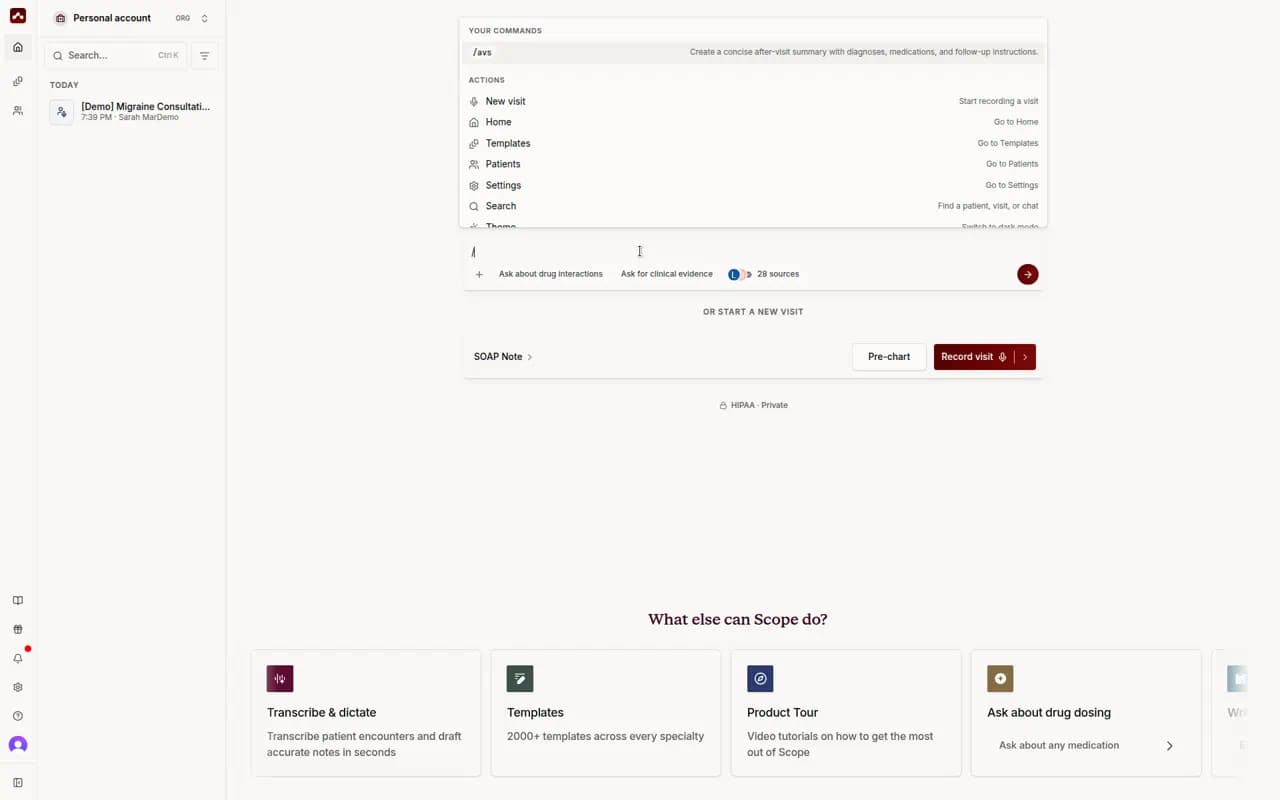 Type a slash to browse your saved commands in Ask Scope
On a computer, you can use the arrow keys and Enter to select a command. On a mobile device, tap a command above the keyboard.
Use a Slash Command in the Note Editor
- Put the cursor where you want to add the saved text.
- Type
/at the start of a line or after a space. - Continue to type the command name to filter the list.
- Select the command that you want to use.
Scope replaces the command name with its saved content. You can edit the content after Scope inserts it.
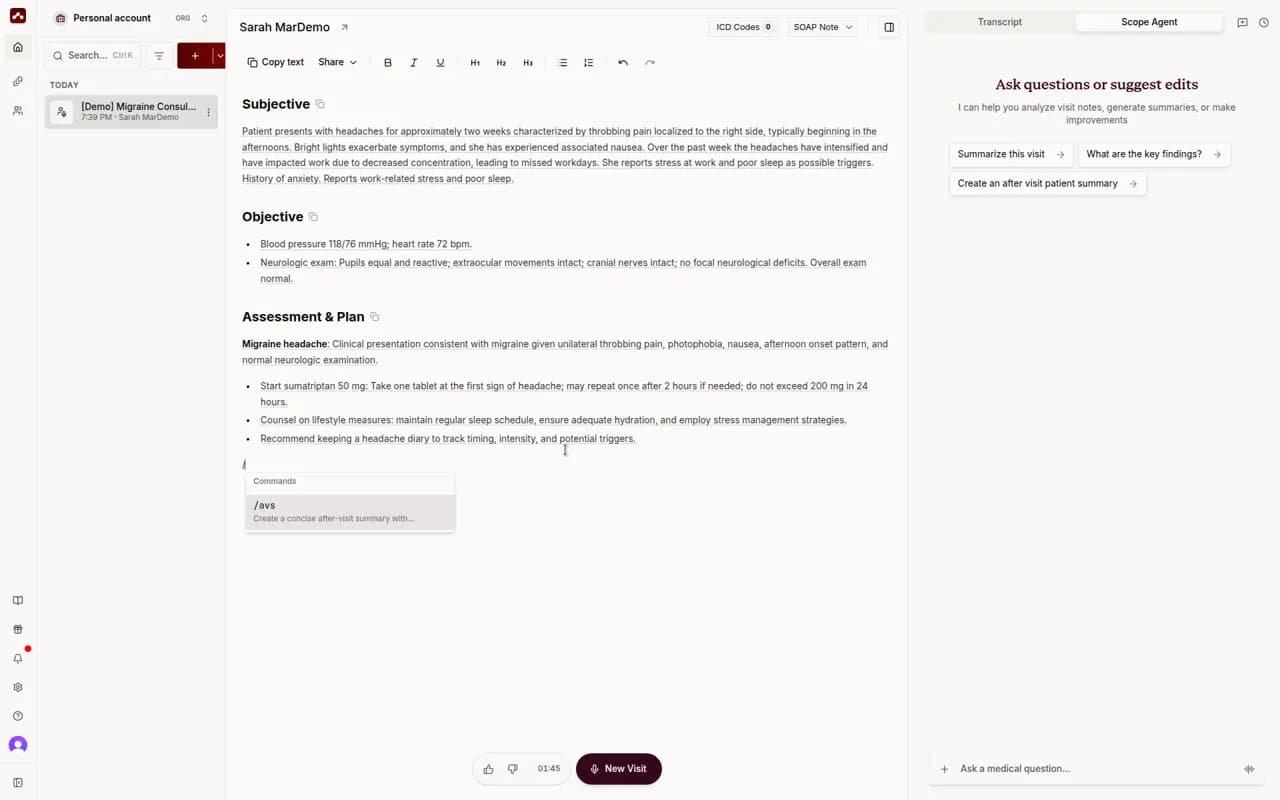 Choose a saved slash command while editing a note
Edit or Delete a Slash Command
- Open Settings in Scope.
- Select Slash commands.
- Select the pencil icon to edit a command.
- Select the trash icon to delete a command.
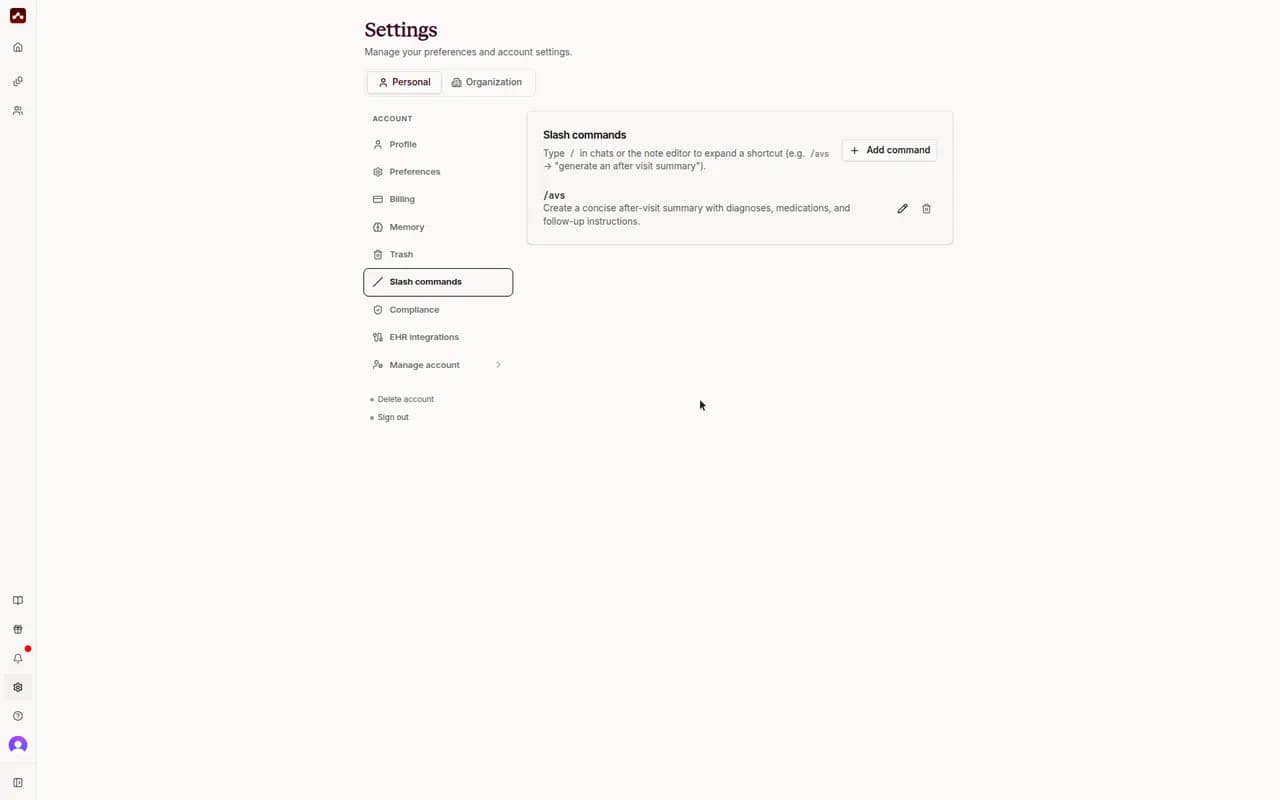 Manage saved slash commands from Settings
Slash Commands and Voice Macros
Slash commands are text shortcuts. You must type or select a slash command before Scope inserts its saved content.
Slash commands are not voice macros. Scope does not listen for a spoken trigger phrase and replace it with a predefined paragraph.
Use a custom template when you want Scope to use a consistent note structure or phrase style.