Customizing Appearance & Preferences
Scope's Preferences settings let you tailor how the app looks and behaves — including a full dark mode.
Opening Preferences
- Click the Settings icon (gear) in the bottom left of the sidebar
- On the Personal tab, select Preferences
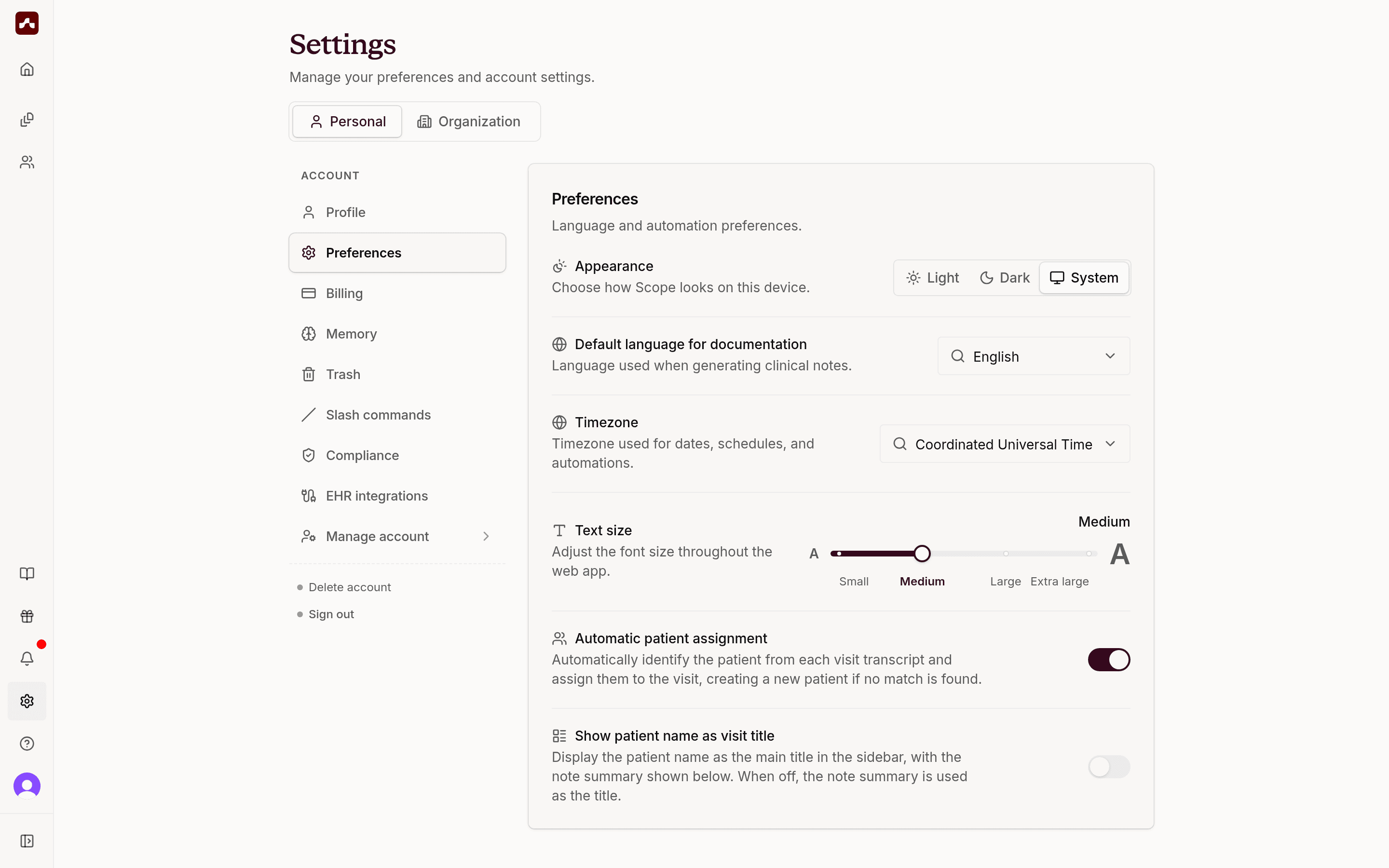 The Preferences section in Settings, with the Appearance toggle at the top
Light and Dark Mode
Use the Appearance toggle at the top of Preferences to choose how Scope looks on this device:
- Light — the classic bright theme
- Dark — a low-brightness theme that's easier on the eyes in dim rooms and during evening documentation
- System — automatically follows your operating system's light/dark setting
Your choice applies immediately, is remembered per device, and stays in sync across any Scope tabs you have open. The Scope browser extension follows the same theme as the web app.
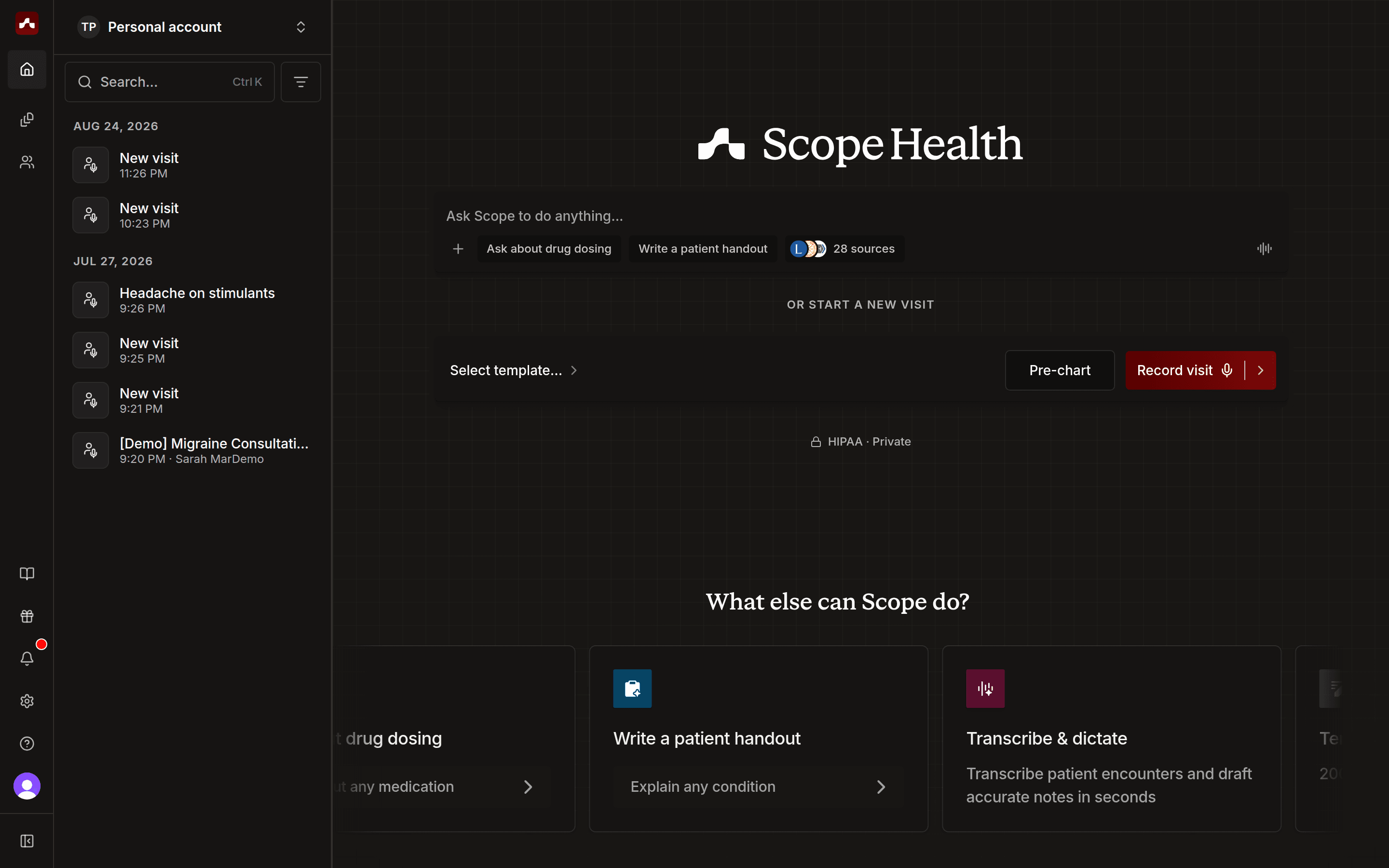 Scope's home page in dark mode
Text Size
Use the Text size slider to adjust the font size throughout the web app, from Small to Extra large. This is handy on high-resolution displays or if you prefer larger type while reviewing notes.
Other Preferences
The Preferences section also includes:
- Default language for documentation — the language Scope uses when generating clinical notes
- Timezone — used for dates, schedules, and automations
- Automatic patient assignment — when enabled, Scope identifies the patient from each visit transcript and assigns them to the visit automatically
- Show patient name as visit title — display the patient's name (instead of the note summary) as the main title in the visits sidebar
If you have any additional questions, please contact support@scopehealth.com.